
Snap! User Interface and Block Categories
Snap! provides an intuitive visual environment designed to make programming accessible. The interface is structured to allow users to move seamlessly from selecting commands to executing code and viewing results in real-time.
The Layout of the Snap! IDE
The screen is organized into three resizable columns that house five distinct functional regions. This layout ensures that all necessary tools for creating scripts are within reach while leaving ample space for the actual programming work.
- Block Group Selector: Located at the top of the left column, this allows users to switch between different categories of blocks.
- Blocks Palette: Situated in the left column, this area displays the specific blocks available within the selected category.
- Main Area: The central column of the interface. Depending on the active tab, this area displays scripts, costumes/backdrops, or sounds associated with the currently selected sprite.
- Stage Area: Located at the top of the right column, this is where the graphical results of running scripts are displayed.
- Sprite Selector: Also known as the sprite corral, this region sits below the stage area and shows thumbnails of all available sprites.
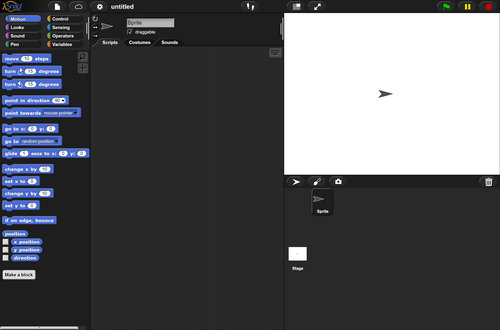
Interacting with the Interface
The Snap! environment is highly interactive. Users can drag individual blocks from the palette and drop them into the scripts area to associate those commands with a selected sprite. To test functionality, users can either run full scripts in the script area or interactively double-click individual blocks within any palette to see their immediate effect on the stage.
Block Categories and Functions
To keep the programming environment organized, Snap! divides its blocks into eight specialized groups. Each group serves a specific purpose, ranging from basic movement to complex data management.
| Category | Function/Notes |
|---|---|
| Motion | Moves and turns sprites |
| Looks | Controls visibility, costumes, and output |
| Sound | Plays audio files and programmable sequenced audio |
| Pen | Write, draw, or stamp on stage |
| Control | If statements, events, loop structures, scenes, OOP, and metaprogramming |
| Sensing | All sprite hit detection and user input |
| Operators | Mathematical, text, and Boolean operators; lambda |
| Variables | Variables and lists (including lists of lists and lists of blocks) |
Key Facts
- The interface consists of three resizable columns and five main regions.
- The sprite corral is the alternative name for the sprite selector.
- Blocks are organized into eight distinct categories for easy navigation.
- The main area is dynamic and changes content based on the selected tab (scripts, costumes/backdrops, or sounds).
- Code can be executed by running scripts or by double-clicking individual blocks.
Frequently Asked Questions
What is the sprite corral?
The sprite corral is the sprite selector located in the right column, below the stage area, which displays thumbnails of the sprites used in the project.
How do I add a block to a sprite's script?
You can add a block by dragging it from the blocks palette in the left column and dropping it into the scripts area in the main central column.
Can I test a single block without running a whole script?
Yes, you can interactively double-click any individual block in a palette to execute its function immediately on the stage.
What can be managed in the main area of the screen?
Depending on the selected tab, the main area allows you to manage scripts, edit costumes and backdrops, or handle sounds associated with the selected sprite.
Which category handles complex data like lists of lists?
The Variables category manages variables and various list types, including lists of lists and lists of blocks.